
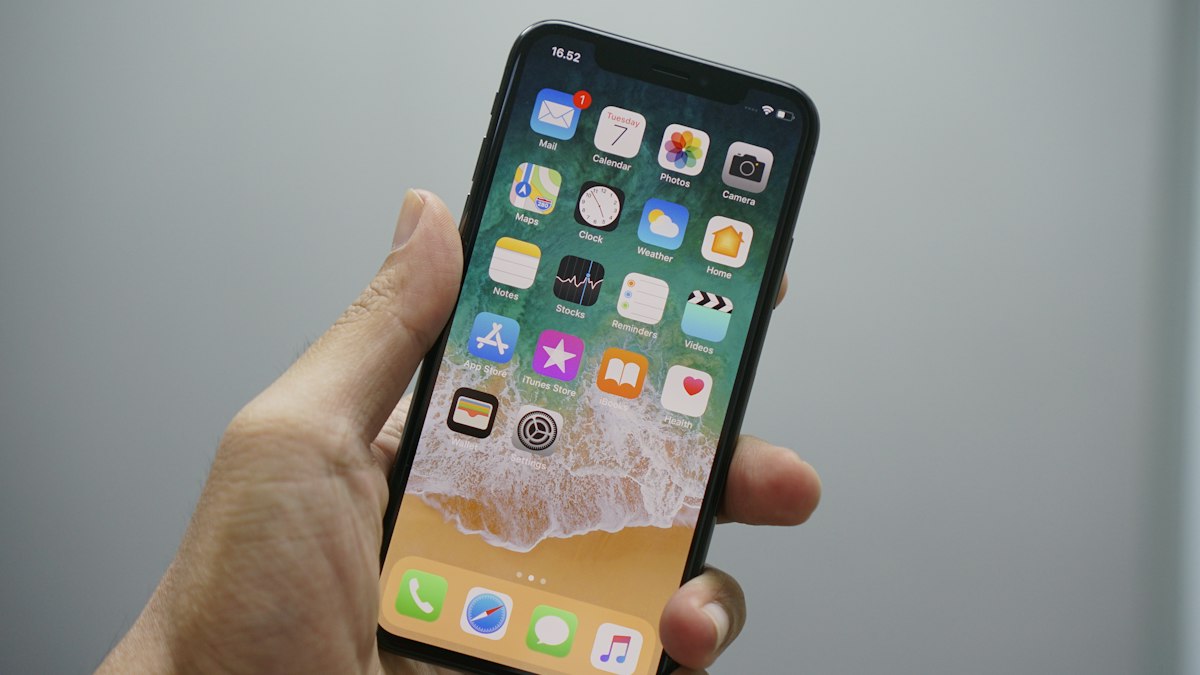
Few things are more frustrating than an iPhone that freezes, lags, or takes forever to open apps. The good news is that most slowdowns can be fixed without buying a new phone.
Here are the top 10 easy ways to speed up iPhone performance, most of which take less than five minutes and cost nothing.
Quick List: Our Top 10 Picks
- Restart Your iPhone
- Update to the Latest iOS
- Free Up Storage Space
- Offload Unused Apps
- Clear Safari Data
- Turn Off Background App Refresh
- Reduce Motion and Transparency
- Optimize Photos Storage
- Check Battery Health
- Reset All Settings
How We Chose This List
To build this speed up iPhone list, we looked at what Americans are searching for right now, popularity, value for money, and real-world usefulness. Every pick below is something we’d confidently recommend to a friend or family member.
Why iPhones Slow Down Over Time
iPhones are built to last for years, but they can feel slower as they age. Apps get bigger, iOS updates add new features, and storage fills up with photos, videos, and cached files. Batteries also wear down naturally, and an aging battery can affect peak performance. The encouraging part is that most slowdowns come from fixable issues rather than hardware failure. Working through the steps below, starting with the simplest, will usually restore noticeable speed and help you get another year or two out of your phone.
1. Restart Your iPhone
A simple restart clears temporary memory and stops stuck background processes. If your phone hasn’t been turned off in weeks, start here.
2. Update to the Latest iOS
Apple regularly releases performance and security fixes. Go to Settings > General > Software Update and install any available updates.
3. Free Up Storage Space
An almost-full iPhone slows down noticeably. Check Settings > General > iPhone Storage and remove large apps, old videos, and downloaded files you no longer need.
4. Offload Unused Apps
Turn on Offload Unused Apps to remove apps you rarely use while keeping their data. You can reinstall them anytime with one tap.
5. Clear Safari Data
Clearing your browser history and website data can speed up Safari. Find it under Settings > Apps > Safari > Clear History and Website Data.
6. Turn Off Background App Refresh
Background App Refresh lets apps update when you’re not using them. Disabling it for non-essential apps saves both speed and battery.
7. Reduce Motion and Transparency
Visual effects look nice but use processing power. Turning on Reduce Motion and Reduce Transparency under Accessibility can make the interface feel snappier.
8. Optimize Photos Storage
Enable Optimize iPhone Storage in iCloud Photos so full-resolution images live in the cloud while smaller versions stay on your device.
9. Check Battery Health
A worn-out battery can cause slower performance. Look at Settings > Battery > Battery Health. If capacity is low, a battery replacement may restore speed.
10. Reset All Settings
As a last step, Reset All Settings restores system preferences without deleting your photos or apps. You’ll need to re-enter Wi-Fi passwords afterward.
Keep Your iPhone Fast Long-Term
- Keep at least 10 to 15 percent of storage free at all times.
- Turn on automatic iOS updates so you always get the latest performance fixes.
- Back up your phone to iCloud or a computer regularly.
- Avoid extreme heat, which can harm your battery and slow performance.
Common Mistakes to Avoid
- Installing “cleaner” or “booster” apps that promise speed but add ads.
- Ignoring battery service messages in Settings.
- Letting thousands of unused screenshots and videos pile up.
Frequently Asked Questions
Why is my iPhone so slow all of a sudden?
Common causes include low storage, outdated software, too many background processes, or an aging battery.
Does closing apps speed up an iPhone?
Not usually. iOS manages background apps efficiently, so force-closing apps only helps when a specific app is frozen.
Will a factory reset make my iPhone faster?
It can help in stubborn cases, but back up your phone first and try the simpler fixes above before erasing everything.
Final Thoughts
Before you spend money on a new phone, try these quick ways to speed up iPhone performance. In most cases, freeing up storage, updating iOS, and trimming background activity will make your phone feel noticeably faster right away.
You May Also Like
- Top 10 Tech Gifts Under $100 for the 2026 Holidays
- Top 10 Best AI Apps for Everyday Life in 2026
- Top 10 Smart Home Gadgets Worth Buying in 2026
Featured image: Photo by Bagus Hernawan on Unsplash